
Companies that use CRM phone integrations see 40% faster lead conversion. Calls and SMS sync within the sales pipelines, which allow automated follow-ups.
LC phone Gohighlevel integration links the phone system to their account. This works simply, and there is no complex set up required.
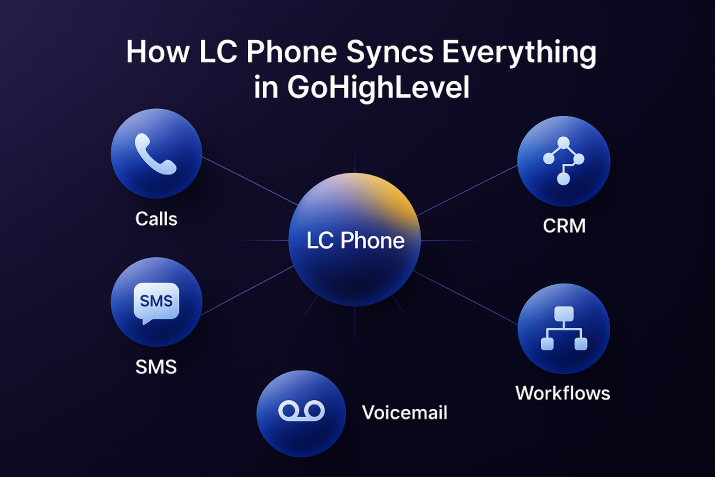
Phone calls, text messages, voicemails and CRM data are brought together. There is no need to switch from one app to another.
This native integration means LC Phone was designed specifically for GoHighLevel.
It knows how your funnels, forms, and automations work. This makes everything flow smoothly together.
How The LC Phone GoHighLevel Integration Works
The integration connects at the agency level and flows down to all your sub-accounts. Once activated, each sub-account can instantly access calling and texting features.
Your contact records automatically link to the phone system. When you call or text someone, the chat saves to their profile automatically.
The integration also connects to your automation workflows. You can start calls and texts based on customer actions. For example, this happens when someone fills out a form or misses an appointment.
Email and phone communications merge into single conversation threads. This unified inbox lets you view all customer interactions in one spot. So, follow-ups become much easier.
Setting Up LC Phone GoHighLevel Integration: Step-by-Step
Getting the LC Phone GoHighLevel integration running takes just a few simple steps. Follow this process to activate everything correctly.
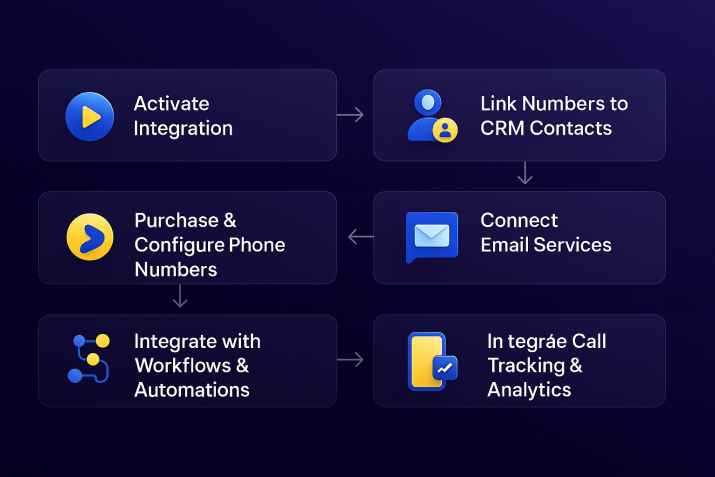
Step 1: Activate the Integration
Open the GHL agency dashboard and navigate to the ‘Settings’ menu. Look for the ‘phone numbers’ section in that panel.
Click the “Turn on LC Phone” button to activate the integration. This single click turns on the phone system for your whole agency and all sub-accounts right away.
The system will show a confirmation message once activation is complete. You’ll now see phone integration options throughout your GoHighLevel interface.
Step 2: Purchase and Configure Phone Numbers
Inside the Phone Numbers section, click “Add Number” to start the purchase process. Select your country and enter the area code you want for your business.
The system displays available numbers that match your search criteria.
Choose a number and click ‘Buy’ to add it to your account.
Set up call forwarding to send incoming calls to your cell phone or team members. Set up voicemail greetings, too.
Now, this integration assigns the number to your sub-account. You can repeat the process for different clients or departments.
Step 3: Link Numbers to CRM Contacts
The LC Phone GoHighLevel integration automatically connects your phone numbers to contact records. Open any contact card in your CRM to see the integrated calling options.
Look for the green phone icon at the top of the contact profile. This icon appears because of the integration and provides instant calling access.
Click on the SMS tab to access text messaging. You don’t have to enter the number manually, it pulls itself.
All calls and texts save to the contact’s activity timeline immediately. The integration timestamps every interaction and links it to the correct customer record.
Step 4: Connect to Email Services
It works best when paired with email integration. Navigate to Settings and select “Email Services” from the menu.
Verify that “LeadConnector” is selected as your default email service. This ensures the phone integration and email integration work together seamlessly.
The combined integration creates unified conversation threads. Customer emails, calls, and texts show up in a single timeline. This makes it easy to reference them all.
This integration setup eliminates the need to check multiple places for customer communications. Everything flows into your GoHighLevel dashboard automatically.
Step 5: Integrate with Workflows and Automations
The LC Phone GoHighLevel integration connects to your automation workflows. Go to the Workflows section and create or edit an existing workflow.
Add “Send SMS” or “Make Call” actions to your workflow steps. The integration allows you to trigger actions based on customer behaviour or set schedules.
Configure the workflow to use your LC Phone numbers automatically. The integration pulls numbers from your account without requiring manual selection each time.
Test your workflow to ensure the phone integration fires correctly. Send test messages and make test calls to verify the integration is working as expected.
Step 6: Set Up Bulk Communication Integration
It supports bulk messaging and calling. Navigate to your Contacts section and use filters to create a target list.
Select multiple contacts by checking the boxes next to their names. Click the bulk actions button to access integrated communication options.
Choose “Send Bulk SMS” or “Bulk Call” from the menu. The integration processes all selected contacts through your LC Phone system automatically.
Monitor the integration’s progress through the activity dashboard. You’ll get real-time updates as messages are sent and calls connect in the system.
Step 7: Configure Mobile App Integration
Download the GoHighLevel mobile app from your device’s app store.
Log in with your agency credentials to sync the phone integration. Your LC Phone numbers and contacts automatically appear in the mobile interface.
With the mobile app, you can send texts. Desktop and mobile stay aligned.
You can answer customers’ calls and respond to texts from anywhere.
Step 8: Integrate Call Tracking and Analytics
View call duration, message delivery rates, and response times through the integrated dashboard. The integration automatically logs all metrics without requiring third-party tracking tools.
Set up number pools for call tracking integration. This feature sends different marketing campaigns through various numbers. This helps track which sources bring in calls.
The integration feeds all call tracking data back into your CRM. You can see which leads came from which campaigns and measure ROI accurately.
Integrating The LC Phone With GoHighLevel Features
Funnel and Form Integration
The LC Phone GoHighLevel integration connects to your sales funnels automatically. When someone submits a form, the integration can trigger an instant call or text.
Add phone fields to your forms to capture numbers during the integration process. These numbers sync directly to contact records for immediate follow-up.
Set up missed call text-back through the integration. When a call goes unanswered, the integration automatically sends a text message to that lead.
Calendar and Appointment Integration
Link your LC Phone to your GoHighLevel calendar for appointment reminders. The integration sends automated SMS reminders before scheduled meetings.
When appointments are booked, the integration logs the associated phone number. This enables direct calling from the calendar interface with one click.
Set up confirmation calls through the integration. Automatically dial new appointments to confirm attendance and reduce no-shows.
Pipeline Integration
The LC Phone GoHighLevel integration tracks calls and texts by pipeline stage. Every communication logs to the correct stage automatically.
Move contacts through pipeline stages based on call outcomes. The integration updates stages when calls connect, go to voicemail, or receive text responses.
Create pipeline automations that trigger LC Phone actions. For example, automatically text leads who enter a specific pipeline stage.
Migrating Existing Phone Systems to LC Phone Integration
If you’re using Twilio or another phone service, you can migrate with the LC Phone GoHighLevel integration. Contact GoHighLevel support to start the phone number porting process.
The integration team handles number transfers in the background. Your existing numbers move to the LC Phone system while maintaining all functionality.
Call history and message records transfer through the integration automatically. You won’t lose any customer communication data during the migration.
The integration shows “Migration in Progress” status during the transfer. Once complete, all features activate and you can start using the fully integrated system.
Centripe Is The Game Changer.
LC Phone’s SMS compliance failures disable all voice services, halting operations.
Centripe isolates channels via superior API, ensuring independent uptime and 82% productivity gains.
Unreliable ring groups bypass CRM voicemails, forcing dual apps.
Centripe unifies routing with AI dashboards for seamless sync, cutting tool-switching by 75%.
Hidden per-use fees ($0.0103/SMS, $1.15/number) escalate costs.
Centripe’s overall plan consists of unlimited calls and messages. No extra charges for scalability.
Twilio -dependent migrations and learning curves slow setup, Centripe’s native integration delivers 40% faster leads with zero hassle.
No Spam. No calls. Unsubscribe anytime.
Conclusion
Most of the opportunities in business come from direct conversation with customers. That’s how you build a base and widen your marketing efforts.
Customers should easily reach you. Get instant replies, rather than being stuck in a waiting line.
Using software like Centripe is preferable because it is based on AI. And it interacts with customers in a humanized way.
Personalization is the key to make an impact and deliver more than expected.